Asset overview
Understand the setup.
Then make it your own.
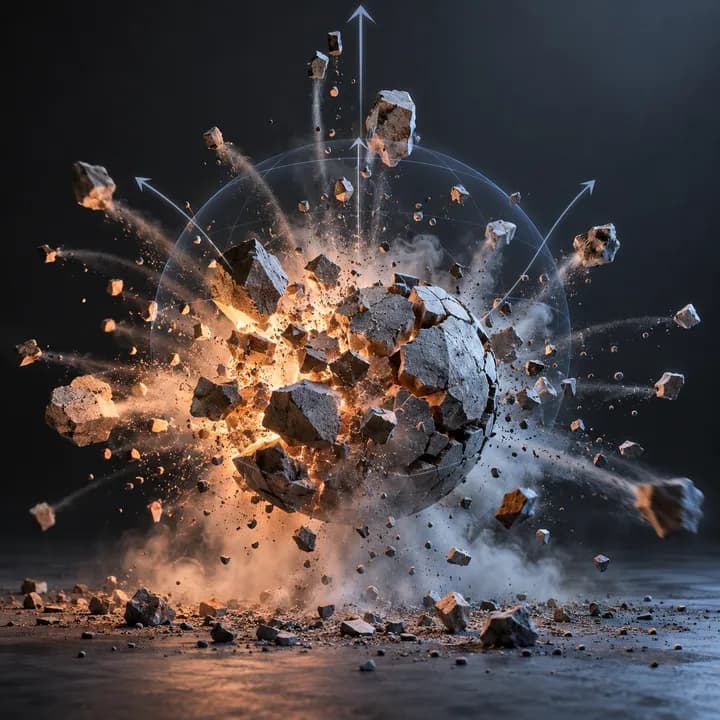
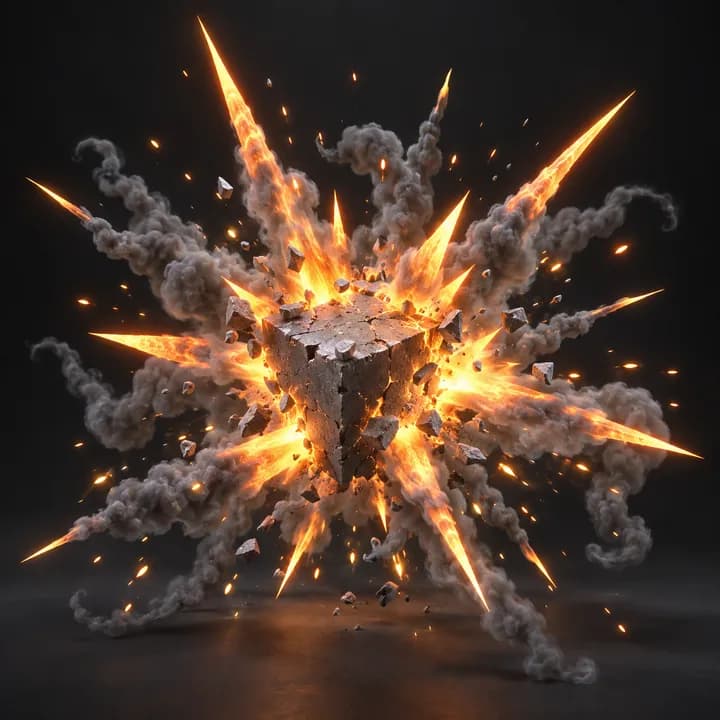
Anime Explosion Pro is a Blender Geometry Nodes asset in OmniKit’s vfx collection.
GENERATOR: drop on a mesh host. Play from Start Frame, or enable Use Manual Time; Manual Time 0.2 shows the early puff burst. Core Blast adds the central solid core; Smoke Column grows later. | MESH INPUT: drop on a mesh, or feed mesh geometry to Geometry. Apply object scale for predictable distances. | Studio-oriented anime-style 2D-look / 3D explosion authoring asset: modular fire, smoke, shockwaves, trails and debris; cel palettes and ink hulls; on-twos timing, manual scrub, flash and phase controls; layer solo/outputs; quality budgets. Independent upgraded derivative of the installed stylized-explosion foundation.
Its exposed inputs include Use Preset, Preset, Quality, Radius, Seed, Master Scale, Origin Offset. Review the control reference below to plan a suitable setup.
Source and setup notes
Source node name: OMNI - Anime Explosion Pro
Collection: 22 Geometry Nodes/VFX/Explosions
Structural inspection used Blender 5.2.0 LTS. Other releases and render engines require separate checks.
How to approach this asset
- Check the source notes for the expected mesh, curve, field, shader or World context.
- Start with a disposable scene and a suitable input. Inspect required object, material or collection inputs.
- Adjust one documented control at a time. Evaluate the result before using it in a production project.